

Part 01
A first batch in ten minutes
From a file of plots to a downloaded evidence document, in five steps.
What you need
One file of plots, in any of these forms:
- a GeoJSON file of
Polygon,MultiPolygonorPointfeatures; - a zipped shapefile;
- a CSV of points with
lonandlatcolumns.
The import reads these columns when they are present:
| Column | What it carries |
|---|---|
ref | Your own identifier for the plot. |
commodity | The crop grown on it. |
planted_year | The year the crop was planted. |
producer | The producer's name, matched against the producers in your workspace. |
country | The country the plot is in. Overrides the picker for its row. |
A re-import matches plots on ref and updates them in place. A
plot with no ref is added as a new row every time the file is
imported.
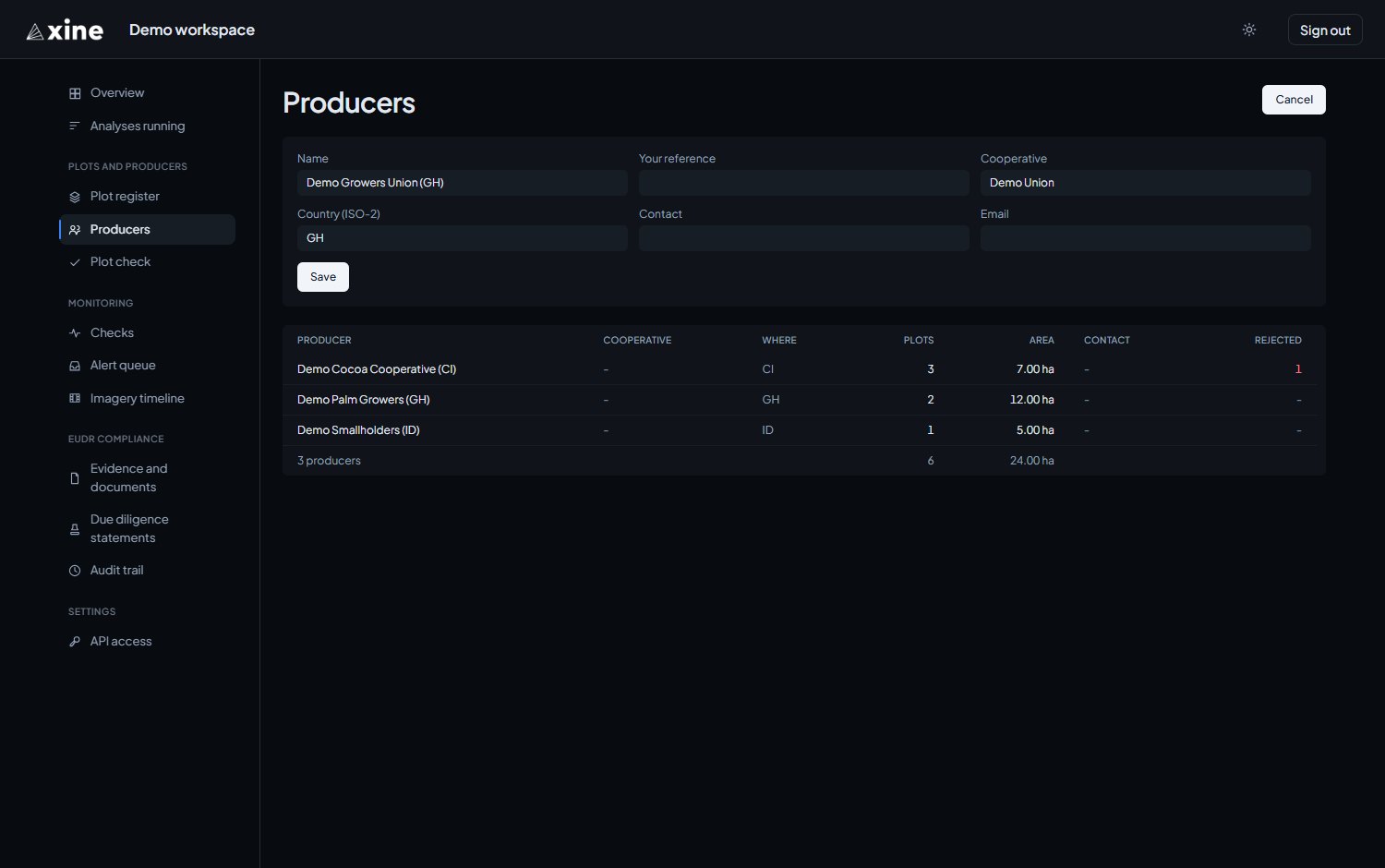
1. Add your producers first
Plots and producers › Producers › Add a producer
Enter the name and the country where the crop is grown. The import attaches
a plot to a producer when the file's producer value matches
exactly one producer name in your workspace, ignoring case and extra spaces,
and it creates no producers of its own. The portal attaches producers only
at import, so create them before you import.
2. Import with the right country
Plots and producers › Plot register
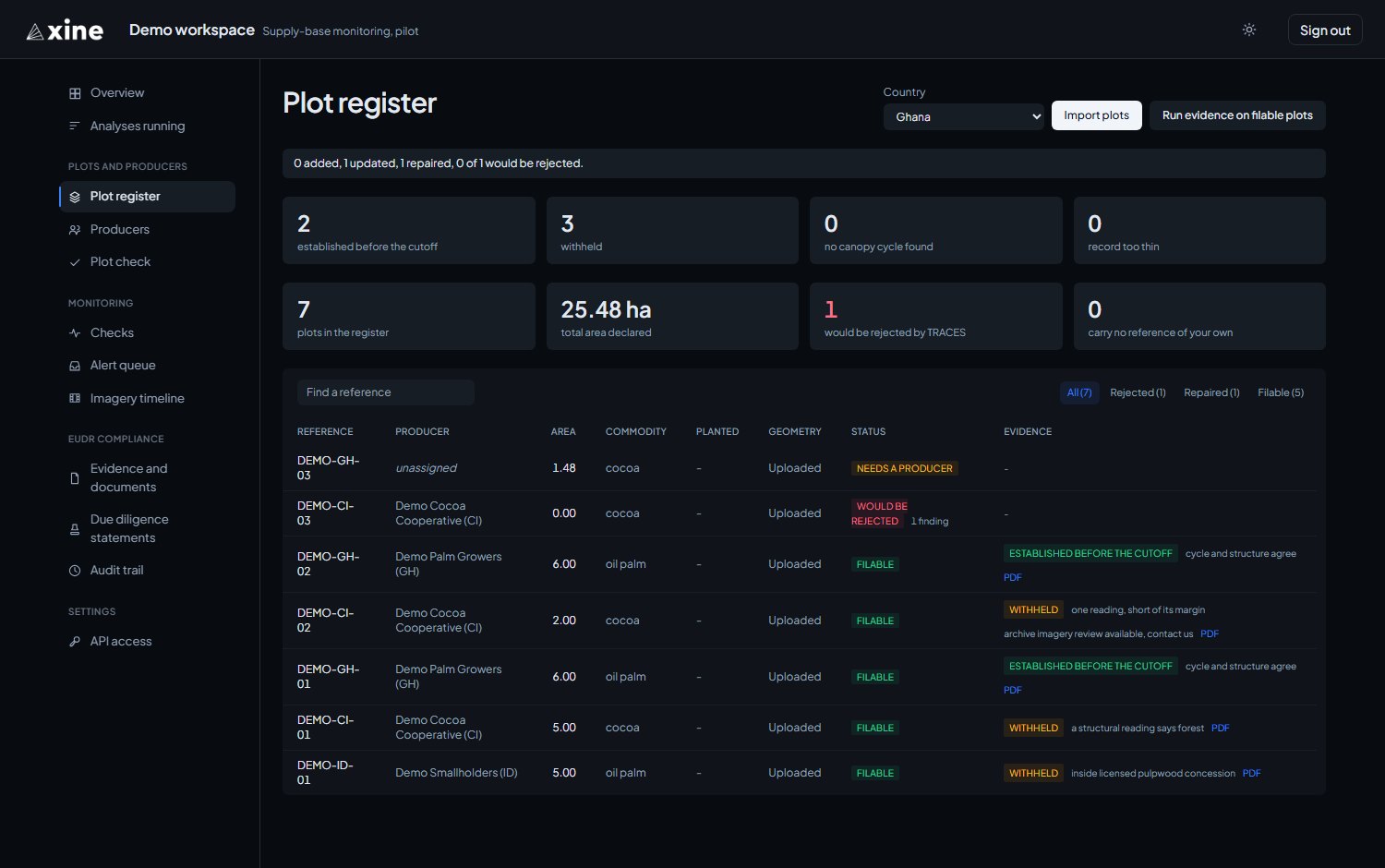
Set Country to the country the plots are in, press
Import plots and choose the file. A country
column in the file overrides the picker for its row. Left on From the
plot's position, each plot is placed by where it lies.
The import returns one line: how many plots were added, how many updated, how many were repaired, and how many of the total TRACES would reject. An unclosed boundary, or one with latitude and longitude the wrong way round, is repaired on import and counts as filable.
3. Validate
The import runs the same geometry checks as the Plot check page, and each row gets a status: Filable, Repaired, Would be rejected or Needs a producer.
Use the Rejected, Repaired and Filable tabs, and click a reference to open the plot's page, which lists every reason it would be rejected, every warning, and every repair made on import. Rejected plots stay in the register so you can fix the file and import it again.
4. Read evidence
Press Run evidence on filable plots. It queues every plot that passed the checks and has no evidence yet, and a note says how many were queued and how much of your plan's evidence allowance is now used.
The Evidence column moves from Queued to Reading to a verdict. Plots are read one after another, at roughly three to five minutes per plot, and the register refreshes itself while any plot is reading. Two plots finish inside ten minutes; a book of fifty takes an afternoon.
A plot shown as Could not be read has used none of your allowance; press Run evidence on filable plots again to retry it.
5. Open the PDF
When a row shows its verdict, the PDF link at the end of the Evidence column downloads that plot's evidence document. Tiles above the table count your plots by verdict.
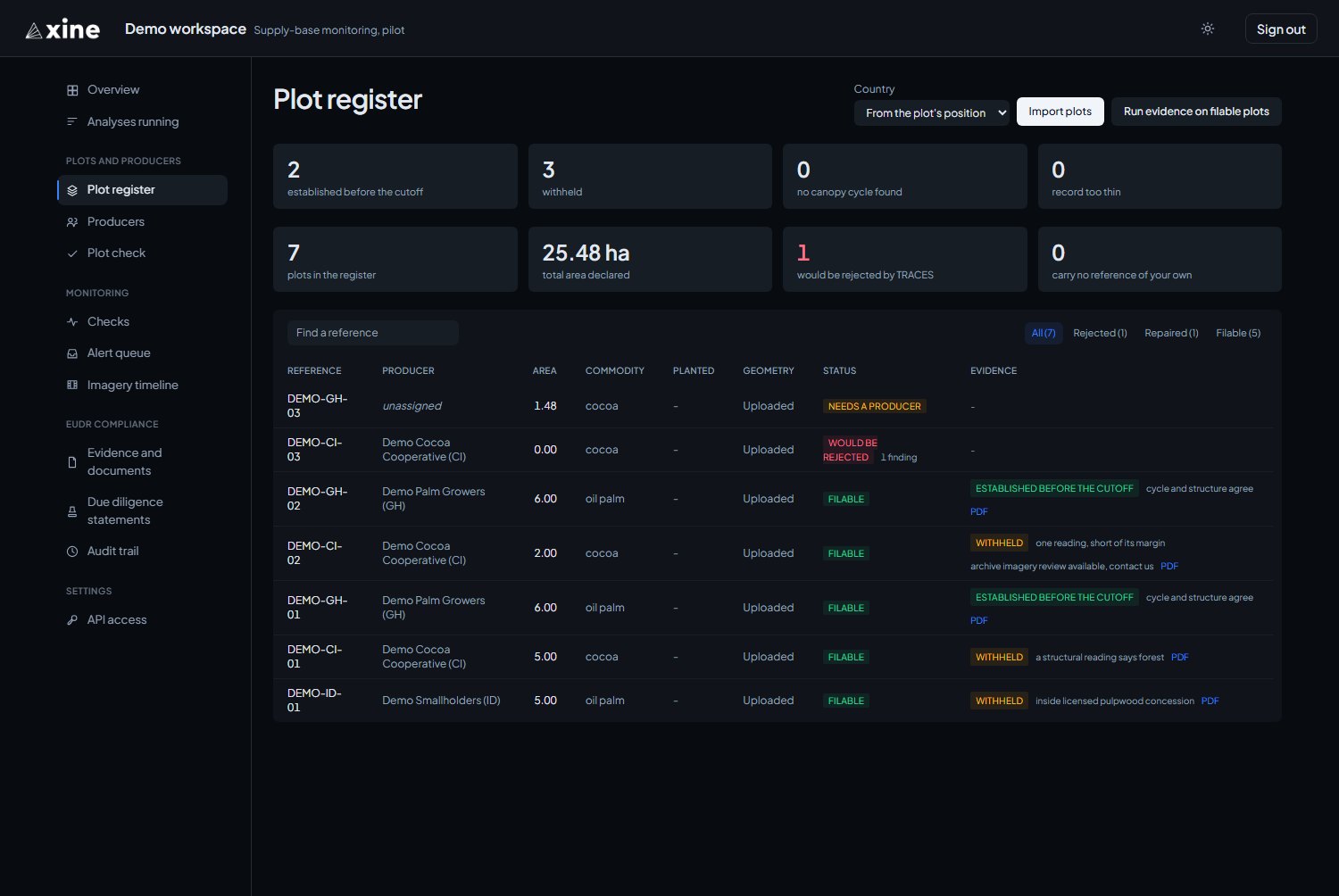
The four verdicts appear in the register as:
- Established before the cutoff
- Withheld
- No canopy cycle found
- Record too thin
The four verdicts gives the meaning of each and the name the API uses for it. A withheld plot goes to a planting record, a title document or a field visit, with its reasons attached. Reading an evidence document walks through the PDF section by section.